
Ultimate Gaming Monitor Guide: Find the BEST Screen for Your Setup
Choosing the perfect gaming monitor is just as crucial as selecting a powerful GPU or CPU. A monster graphics card won’t shine if your display can’t keep up.
This guide shows exactly what matters so you will pick a screen that matches your setup and your fps goals.
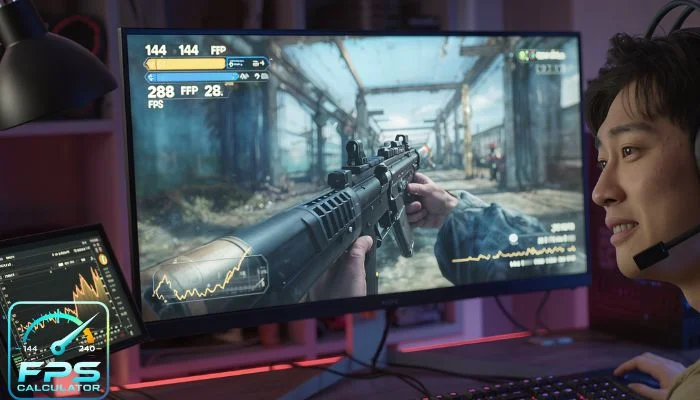
Why your monitor matters beyond you thought
You may focus on frame rates and hardware — but your monitor sets the final output your eyes see.
If your game pushes 144 fps but your monitor is only 60 Hz, you’ll never enjoy the full benefit.
On the flip side, buying a 360 Hz monitor when your rig only delivers 60 fps is a wasted budget.
FPS, refresh rate & response time — what those specs mean
FPS (Frames Per Second) is how many frames your system outputs every second.
The refresh rate (measured in Hz) indicates how many frames your monitor can show each second.
If your rig outputs 120 fps but your display is 60 Hz, 60 frames get shown — the rest are wasted.
Response time (ms) is how quickly pixels change color. Lower is better for fast-motion games.
Screen resolution & size — balancing detail and performance
Higher resolution brings more detail but demands more from your GPU.
For example, 4K at 144 Hz is gorgeous — but you’ll need a top-tier rig.
If you play competitive shooters, 1080p or 1440p with high refresh might serve you better.
Choose a size that suits your desk, gameplay style and visual preference.
Panel types: TN, IPS, VA (and OLED)
TN panels are fast and budget-friendly but fall short in color accuracy and viewing angles.
IPS panels offer great color and angles; modern IPS are fast enough for most gamers.
ViewSonic VA panels deliver impressive contrast and deep blacks, making them ideal for immersive gaming experiences.
OLED is premium: excellent contrast, speed and quality but at higher cost.
Matching monitor specs to your hardware & gaming style
Ask yourself:
- Do I play competitive shooters or casual single-player games?
- What resolution and fps can my rig reliably deliver?
- What screen size fits my desk and viewing distance?
If your hardware consistently hits 120+ fps, a 144 Hz or 165 Hz panel makes sense.
If you’re GPU-limited, prioritise resolution or panel quality instead of ultra-high refresh.
Adaptive Sync: The Secret to Smoother Gameplay
If you’ve ever seen screen tearing — those ugly horizontal splits — that’s because your GPU and monitor were out of sync.
Adaptive sync tech like G-Sync (by NVIDIA) and FreeSync (by AMD) fixes that.
G-Sync vs FreeSync
G-Sync needs NVIDIA GPUs and usually costs more because it uses a hardware module.
FreeSync works with AMD and many modern NVIDIA cards too — it’s more budget-friendly.
Most new gaming monitors now support one or both, so compatibility isn’t a big worry anymore.
Just double-check your GPU and monitor pairing before you buy.
Why adaptive sync matters for FPS
If your fps constantly changes between 80–144 fps, adaptive sync keeps gameplay fluid.
Without it, your screen might flicker or tear when fps fluctuates.
With it, you get seamless transitions — especially in fast titles like Valorant, Apex Legends, or Call of Duty.
HDR & Color Accuracy: See Every Detail
HDR (High Dynamic Range) makes games look vibrant, realistic, and cinematic.
You’ll notice brighter whites, deeper blacks, and punchier contrast.
For HDR to shine, your monitor needs at least DisplayHDR 400 certification or higher.
Why HDR is worth it
Games like Cyberpunk 2077 and Horizon Forbidden West look stunning with HDR enabled.
Colors pop, and lighting feels alive — you’ll spot enemies faster too.
If you stream or record gameplay, HDR enhances your visuals for viewers.
Don’t forget color accuracy
Look for sRGB 100% or DCI-P3 90%+ coverage.
Better color means a more immersive world — and if you edit videos or create thumbnails, it’s a bonus.
Ultrawide vs Standard Monitors
Ultrawide monitors give you more screen real estate — great for racing and simulation games.
They widen your field of view, making gameplay more immersive.
A 21:9 or 32:9 ratio lets you see more without needing multiple displays.
Pros of ultrawide
- More workspace for multitasking and editing
- Wider FOV in compatible games
- Looks futuristic on any desk
Cons of ultrawide
- Some games don’t support full aspect ratio
- Requires stronger GPU to maintain fps
- Pricier than standard 16:9 screens
If you love immersion and have a capable GPU, ultrawide is worth every penny.
Otherwise, a 27-inch 1440p 165 Hz screen hits the perfect sweet spot.
Flat vs Curved Monitors — Which Feels Better?
Curved monitors wrap the image around your vision, making it feel more natural.
They reduce eye strain and keep your focus centered during long gaming sessions.
Flat monitors, on the other hand, are usually cheaper and better for competitive gaming setups.
If you sit close to your screen and play immersive titles like RPGs or racing games, go curved.
If you prefer shooters, eSports, or editing, flat might serve you better.
How to Match Your Monitor With Your FPS Setup
Here’s a quick match-up guide for your hardware:
| PC Setup | Recommended Resolution | Best Refresh Rate | Monitor Type |
| Budget build (GTX 1650 / RX 6500 XT) | 1080p | 75 Hz–120 Hz | TN / IPS |
| Mid-range (RTX 3060 / RX 7600) | 1440p | 144 Hz–165 Hz | IPS |
| High-end (RTX 4070 Ti + / RX 7900 XT) | 1440p–4K | 165 Hz–240 Hz | IPS / OLED |
| Extreme (RTX 4090 / future GPUs) | 4K + Ultrawide | 240 Hz + | OLED / Mini-LED |
You can also use the FPS Calculator Tool to estimate your game’s real fps before buying.
It helps you pick the perfect refresh rate for your rig — no guessing required.
👉 Try it now on
Refresh Rates Explained: Why 60Hz Isn’t Enough
Refresh rate means how many times your screen updates each second.
A 60Hz refreshes the screen 60 times per second, great for watching movies but not ideal for gaming.
Competitive players now aim for 144Hz, 165Hz, or even 240Hz displays.
Higher refresh rates reduce motion blur and gameplay feels much smoother and more responsive.
When you flick your aim in CS2 or Valorant, those extra frames can make a difference.
You’ll see enemies a split-second faster, and your movements will look fluid instead of choppy.
How refresh rate affects gameplay
At 60Hz, your system can only display 60 fps.
Even if your GPU outputs 200 fps, you’ll only see 60.
With 144Hz or 240Hz, your monitor keeps up with your GPU — that’s where real responsiveness begins.
Choosing the Right Refresh Rate for Your Build
Don’t waste money on refresh rates your GPU can’t match.
If your graphics card barely hits 80 fps in Apex Legends, a 240Hz monitor won’t help.
Instead, balance refresh rate with your hardware performance.
| Game Type | Recommended Refresh Rate | Notes |
| Casual / Indie | 60–75Hz | Smooth enough for chill gaming |
| Competitive FPS | 144Hz+ | Ideal for shooters and eSports |
| Racing / Action | 165Hz–240Hz | Better motion clarity |
| Ultra-High-End Builds | 240Hz–360Hz | Future-proof, top-tier smoothness |
Use your FPS Calculator Tool to see how many fps your rig really produces.
It’ll help you decide if 144Hz or 240Hz gives real value for your setup.
Budget Tiers — Find the Best Monitor for Your Wallet
Not everyone needs a $1,000 display.
Here’s how to shop smart for your price range.
Entry Level (Under $200)
Look for 1080p, 75Hz monitors with IPS panels.
Brands like Acer, AOC, and ASUS offer solid budget picks.
They’re great for casual gamers or second setups.
Mid-Range ($200–$500)
You’ll get 1440p, 144Hz, and adaptive sync support here.
Perfect for mainstream gamers who want both clarity and performance.
Popular picks include Gigabyte M27Q, Dell S2721DGF, and MSI G273QF.
High-End ($500–$1000+)
Expect 4K, 240Hz, or OLED displays.
These are built for hardcore and competitive gamers chasing perfection.
Models like Samsung Odyssey G8, ASUS ROG Swift, and LG UltraGear OLED rule this tier.
Best Gaming Monitor Brands for 2025
The gaming monitor market keeps evolving fast.
Here are top brands dominating 2025 — each known for something special.
ASUS ROG
Best for eSports and performance.
They offer top refresh rates, fast response, and RGB-ready designs.
LG
Leads in OLED tech and color accuracy.
Ideal for gamers who also create or stream content.
Samsung
Masters of curved and ultrawide screens.
If immersion is your goal, Samsung is unbeatable.
Gigabyte / AORUS
Delivers premium features at lower prices.
Great choice if you want value and performance in one.
Dell / Alienware
Known for reliability and sleek design.
Alienware’s QD-OLED displays are especially popular for 2025.
Setup Tips for Maximum FPS and Smooth Gameplay
A great monitor is only as good as your settings.
Follow these pro tips to get the smoothest performance possible.
- DisplayPort cable rather than HDMI to achieve higher refresh rates
- Enable Game Mode or Adaptive Sync in monitor settings.
- Turn off background apps that eat GPU or CPU power.
- Keep your graphics drivers updated.
- Calibrate your monitor for color accuracy using free online tools.
Also, always match your in-game resolution to your monitor’s native resolution.
Running 1440p on a 1080p monitor wastes performance and hurts image quality.
What Makes a Gaming Monitor “Good”?
A great gaming monitor isn’t just about visuals and delivering a smooth, immersive gameplay experience.
When every frame counts, the screen must keep up with your reflexes and your rig.
Let’s break down what really makes a monitor worth it.
Screen Size and Resolution
Size affects both comfort and immersion.
Gamers prefer 24–27 inches for competitive play — sharp visuals and easy eye tracking.
If you love open-world games, 32-inch or ultrawide screens give that cinematic feel.
Resolution, meanwhile, decides clarity:
- 1080p (Full HD) → Fastest FPS, best for eSports
- 1440p (QHD) → Perfect balance of sharpness and performance
- 4K (UHD) → Stunning visuals, but needs powerful GPU
Response Time and Input Lag
Response time shows how quickly a monitor’s pixels can change from one color to another.
The lower it is, the less ghosting and blur you’ll see.
For gaming, look for 1-5 ms.
Under 10 ms is ideal for smooth, instant feedback.
Panel Type — IPS, VA, TN, or OLED?
Each panel has its strengths:
- TN: Fastest response, budget-friendly, weaker colors.
- IPS: Best color accuracy and viewing angles.
- VA: Deep contrast, great for dark scenes.
- OLED: Perfect blacks, vibrant colors, but pricey.
For most players, IPS or OLED is the sweet spot.
Adaptive Sync Tech
Screen tearing happens when your FPS doesn’t match your monitor’s refresh rate.
That’s where adaptive sync saves the day.
Look for G-Sync (NVIDIA) or FreeSync (AMD) to keep gameplay smooth.
Screen Resolution Breakdown
Resolutions can make or break your gaming experience.
It impacts sharpness, GPU load, and even FPS performance.
1080p (Full HD)
- Still the king for performance.
- Perfect for competitive shooters like Valorant or CS2.
- Easy to hit 120–240 FPS even on mid-range systems.
1440p (QHD)
- The modern gaming sweet spot.
- Sharper visuals without massive GPU strain.
- Excellent for single-player adventures or RPGs.
4K (UHD)
- Gorgeous visuals and crisp textures.
- But it’s GPU-heavy — you’ll need an RTX 4080 or RX 7900 XTX to maintain high FPS.
- Great for cinematic games and next-gen consoles.
Ultrawide (21:9 or 32:9)
- Immersive field of view and perfect for racing or simulation titles.
- Make sure the game supports it — some older titles may crop visuals.
How Resolution Affects FPS
Higher resolution = more pixels = more GPU work.
If your FPS drops, try reducing resolution for smoother play.
Your FPS Calculator Tool can help estimate the sweet spot before upgrading.
Response Time and Input Lag
Even with high FPS, bad response time can ruin gameplay.
Here’s what to know.
What Is Response Time?
It’s how fast a pixel switches colors — typically measured in milliseconds (ms).
Slower response = blurry motion.
Aim for:
- 1 ms (GTG) → ideal for eSports
- 3–5 ms → great for most gamers
Input Lag — The Invisible Delay
Input lag is the delay between your command and its display.
For competitive play, look for monitors under 10 ms total lag.
How to Reduce Input Lag
- Use Game Mode in monitor settings.
- Turn off post-processing effects.
- Connect via DisplayPort or HDMI 2.1.
- Enable Low Input Lag mode if available.
Fast input equals fast reactions.
Adaptive Sync — G-Sync vs FreeSync vs VRR
That’s when part of one frame overlaps another — causing a weird split effect.
G-Sync (NVIDIA)
Premium adaptive-sync tech by NVIDIA.
It uses a hardware module for perfectly smooth frames.
Best with RTX or GTX GPUs.
FreeSync (AMD)
AMD’s open-standard alternative.
Cheaper, available on more monitors, and compatible with many NVIDIA cards now.
VRR (Variable Refresh Rate)
The next evolution — built into new HDMI 2.1 monitors and consoles.
Automatically adjusts refresh rate to match FPS in real time.
Pro tip:
If your monitor supports VRR and your GPU matches, keep it on — it eliminates tearing instantly.
Calibration and Settings Guide
Even the best monitor looks off out of the box.
Fine-tuning makes all the difference.
Basic Setup
- Brightness: 80–90 % for daylight rooms, 60 % for dim lighting.
- Contrast: Adjust until whites pop without losing dark detail.
- Color Temp: 6500 K (neutral).
Advanced Tweaks
- Use built-in color calibration in Windows or NVIDIA Control Panel.
- Enable Game Mode or FPS Mode for low latency.
- Turn off Dynamic Contrast — it often distorts color accuracy.
Match FPS & Refresh
If your FPS fluctuates, set a frame cap close to your monitor’s Hz.
This keeps visuals consistent and prevents tearing.
Want to know what FPS to aim for?
Run your setup through your FPS Calculator for real-time estimates.
FPS Testing and Optimization
Checking FPS is essential to see if your monitor setup is performing right.
How to Check FPS
- Steam Overlay: Enable “Display FPS” in settings.
- Windows Game Bar: Press Win + G and view the FPS counter.
- MSI Afterburner: Free tool to track FPS, temperature, and GPU usage.
- FPS Calculator Tool: Estimate before you even launch a game.
Optimization Tips
- Lower resolution scaling or anti-aliasing.
- Close background apps.
- Switch to performance mode in Windows.
- Update GPU drivers regularly.
Benchmarking
Run consistent benchmarks to compare upgrades.
Track your data in a sheet — you’ll spot trends and bottlenecks fast.
Multi-Monitor and Ultrawide Setups
Gamers love extra screen space — whether for streaming, chat, or full immersion.
Dual-Monitor Setup
One screen for gaming, one for browsing or monitoring.
Use DisplayPort + HDMI combo for easy setup.
Keep your primary gaming monitor centered for focus.
Ultrawide Immersion
An ultrawide monitor replaces dual setups elegantly.
Perfect for racing, simulation, and creative work.
Make sure your GPU supports the resolution — it’s demanding.
Performance Considerations
Extra screens increase GPU workload slightly.
If FPS dips, turn off displays not in use during gaming sessions.
Common Monitor Myths Busted
Let’s clear up some popular misunderstandings.
Myth 1: “The human eye can’t see past 60 FPS.”
False.
You can perceive smoother motion beyond 60 FPS — especially in fast-moving scenes.
Competitive gamers notice differences even up to 240 FPS.
Myth 2: “Higher resolution always looks better.”
Not always.
On small screens, 4K may look nearly identical to 1440p but runs slower.
Balance clarity and performance for your setup.
Myth 3: “HDR always improves visuals.”
Only if the display supports true HDR brightness and contrast.
Budget “HDR-Ready” monitors often fake the effect.
Myth 4: “All IPS panels are slow.”
Modern IPS panels rival TN in speed while delivering much better color.
The Future of Gaming Displays
Display tech is evolving fast — and it’s all about speed, clarity, and AI.
OLED Advancements
OLED monitors now use improved burn-in protection.
Expect sharper images, instant response, and self-lit pixels for true black levels.
Mini-LED and MicroLED
Mini-LED backlighting boosts brightness and contrast without OLED risks.
MicroLED takes it further — better efficiency, no burn-in, insane durability.
480 Hz Monitors Are Coming
We’re entering the ultra-high refresh era.
480 Hz displays already exist in prototype form and may ship in 2026.
They’ll make competitive gaming unbelievably smooth.
AI-Driven Optimization
Some new monitors include AI features to adjust color, brightness, and motion automatically.
Paired with DLSS and FSR upscaling, expect smarter and faster visuals than ever.
Final Thoughts — Picking the Perfect Gaming Monitor
Choosing the best gaming monitor isn’t just about specs — it’s about balance.
Know your goals, understand your hardware, and match them wisely.
If you play competitive shooters, go for high refresh (144 Hz +).
If you love cinematic adventures, pick a vibrant 4K OLED.
Before you buy, use your FPS Calculator Tool to estimate frame rate with your CPU, GPU, and settings.
Smooth frames, crisp visuals, and zero lag — that’s the formula for gaming bliss.